To show a colleague an expense form or the steps that reproduce a bug, record only the necessary window or tab in a one-to-two-minute demonstration. Plan a few actions, make a ten-second audio and text check, then record the full explanation to reduce retakes.
This guide is about delivering a short work explanation, not archiving an entire important meeting or lecture. Installation-free does not mean permission-free: company policies, browser permissions, and OS restrictions still apply. Do not treat a web recorder as a way around blocked permissions.
Start with these choices
Use non-sensitive test data and remove notifications and account details.
Play the result to check both source audio and narration rather than relying on a connection label.
Download it, reopen the file, and check the recipient's player.
Watch the trial at the recipient’s viewing size
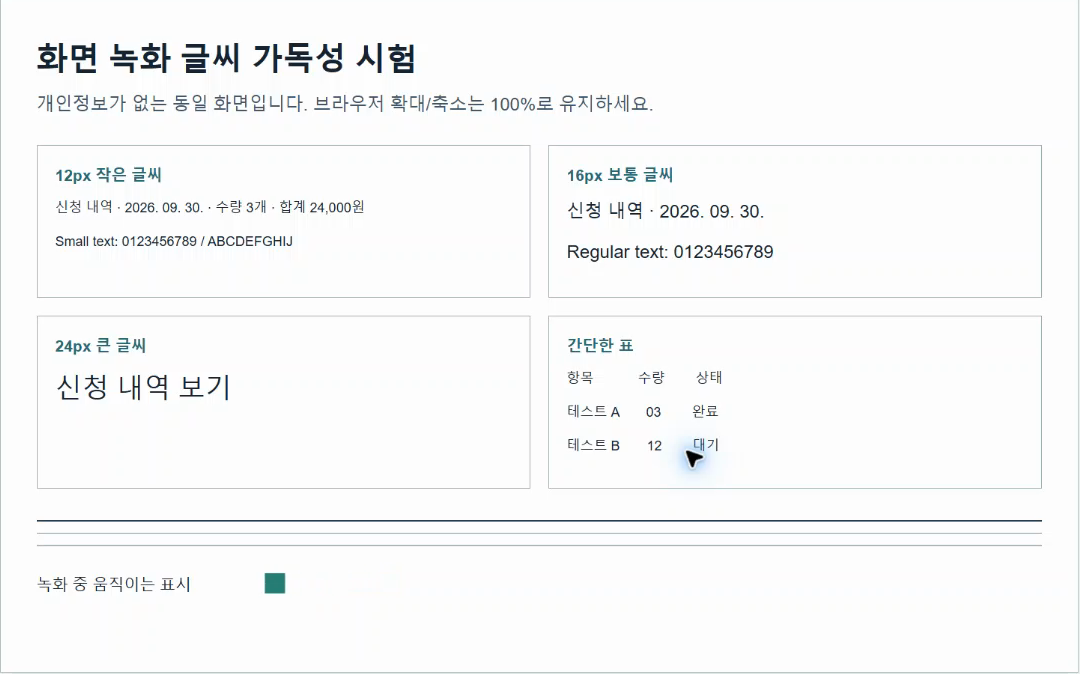
This document crop comes from an actual test recording. A completed file is not enough: menu labels and values need to be readable. Find the smallest button label in your own trial; resize the target window or adjust page zoom if necessary.
- Read related articleMeasured text size in tab, window and screen recordings
For an expense tutorial, plan three buttons first
Showing where to click, what to enter, and where to find the saved result may be enough. Rehearse rather than searching for menus while recording. Replace real employee IDs, contact details, and amounts with safe test values.
Open the intended window and remove unrelated tabs, notifications, and popups. Check that the address bar does not reveal an access token or private link. This recorder does not automatically redact information or highlight mouse clicks, so prepare sensitive content before capture.
For several tasks, short one-to-two-minute explanations are easier to locate and retake than one long recording. Save each result before closing the browser.
Choose a tab, window, or screen by the scope of the task
Use a tab for a web workflow and a window for one installed app. Share the entire screen only when switching between apps is necessary. Needing audio is not, by itself, a reason to share everything.
- Browser tab: demonstrate one web page; confirm Share tab audio if you need sound.
- App window: show one program; window-audio support varies by browser and OS, so test it.
- Entire screen: show necessary movement across apps; the taskbar, other windows, and notifications may be visible.
- Check consent and organizational recording and sharing rules before including meetings, classes, or other people's content.
Select audio sources separately
A silent click sequence can use neither audio source. Enable the microphone for your explanation and screen audio for sound from the web page or app. A microphone does not directly connect the app's internal audio.
- Silent button walkthrough: screen audio off, microphone off
- Narration-led explanation: microphone on, unnecessary screen audio off
- Source sound plus narration: both on, headphones, and separate checks of each source
Five checks for your ten-second trial
A moving meter indicates an input signal, not a guarantee about the saved file. Say a sentence and play the intended tab sound during the trial. The live preview is muted to avoid feedback; unmute the result player when reviewing it.
- Is the intended window or tab captured without private information?
- Can you read labels and values at the actual sharing size?
- Are screen sound and your voice both present without one masking the other?
- Are the first and last actions included, with no frozen picture?
- Does the downloaded file play in the recipient's intended app?
Pausing, ending sharing, and saving are separate actions
Pause stops adding time to the file but keeps screen and microphone sharing active. It is not a privacy mode for opening sensitive content. Finish recording or use the browser's Stop sharing to end capture.
Data accumulates in memory. Toolit stops around 200MiB or 30 recorded minutes, but these safeguards do not guarantee success on every device. Record short sections and save each result. Lost footage after refresh, exit, or device sleep cannot be automatically recovered.
Should the recipient get a video or a GIF?
Keep a video when narration matters. The browser records MP4 or WebM according to supported formats; MP4 is not guaranteed. Renaming a file to .mp4 does not improve compatibility. Test a sample in the recipient's app.
Use GIF only for a short, silent action that needs to repeat in a document. Save the original recording before passing it to Make a GIF and selecting a scene. GIF may be larger than the video, and a refresh can interrupt the temporary handoff.
- Read related articleWhy a screen recording has no audio and what to check
- Read related articleChoose a short video scene and GIF settings
- Read related articleCompress a video to fit an upload limit