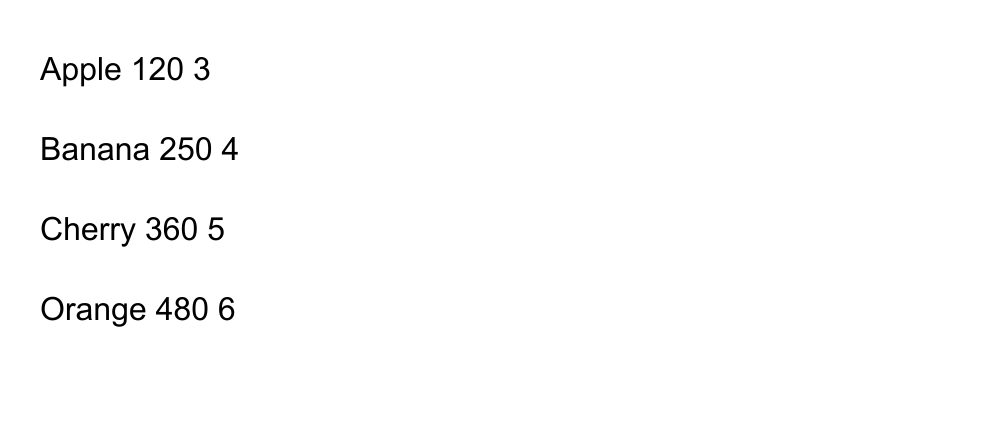
Exact two-columns OCR output — whitespace retained
Apple 120 3                             Cherry 360 5
Banana 250 4                           Orange 480 6
We placed identical text and numbers in a list, two columns and a table, then tested OCR output and separate-column crops. Learn what to check before spreadsheet use.
Recognizing every word does not mean reconstructing every cell. An OCR result can contain correct numbers while placing them in an unexpected reading order or leaving column boundaries as spaces.
We tested identical entries in three layouts and separately cropped the two-column example. Toolit's image OCR extracts text; it is not an image-to-spreadsheet table reconstruction tool.
The full two-column image placed Cherry after Apple instead of Banana.
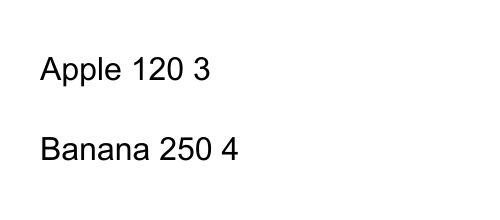
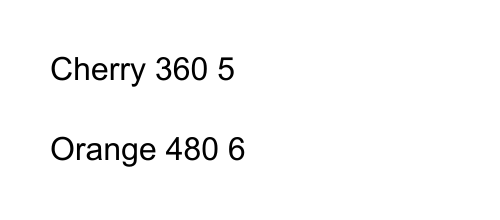
Combining the left crop's output with the right crop's output matched our reference.
Its row relationships survived, but column gaps were spaces, not tabs or spreadsheet cells.
We intended the left column to finish before the right began. Whole-image extraction instead joined entries at the same height, placing Cherry after Apple. The text below is the recorded output, not an edited illustration.
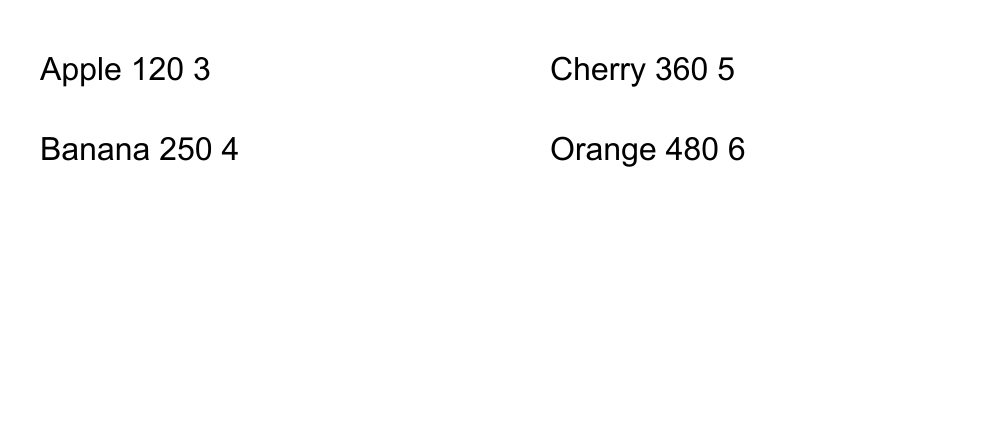
Exact two-columns OCR output — whitespace retained
Apple 120 3 Cherry 360 5 Banana 250 4 Orange 480 6
Exact table OCR output — whitespace retained
Apple                                120                           3
Banana                                     250                                  4
Cherry                                      360                                  5
Orange                                     480                                  6
All three originals contained the four correct item names and eight correct numbers. The 12/12 counts below concern only those entries, not a general 100% OCR accuracy claim.
| Input | Correct tokens | Intended order | Observation |
|---|---|---|---|
| Single column | 12/12 | Matched | Four separate entries |
| Full two-column image | 12/12 | Did not match | Apple→Cherry→Banana→Orange |
| Simple table | 12/12 | Matched | Four rows, multiple spaces between fields |
| Separate columns combined | 12/12 | Matched | Apple→Banana→Cherry→Orange |
Apple and Banana were on the left; Cherry and Orange on the right. The full output read ‘Apple 120 3 … Cherry 360 5’ on its first line and ‘Banana 250 4 … Orange 480 6’ on its second. It joined entries at the same height rather than finishing the left column first.
Recognizing each 500×220 crop separately returned two entries per column. Left output followed by right output matched our intended list. This does not mean all two-column documents fail: spacing, sentence length and headings can change segmentation.
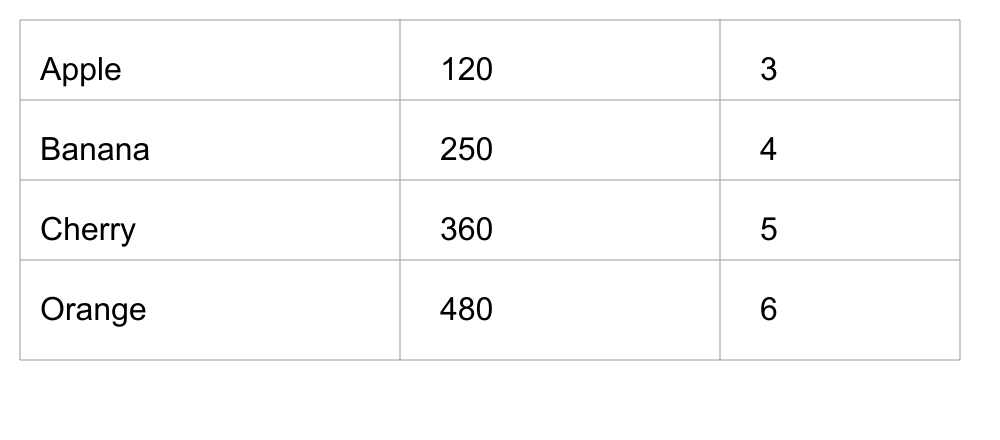
The simple table retained all four rows and their item-number relationships. Its output contained multiple spaces between values and zero tab characters. It did not encode cell coordinates or a spreadsheet structure.
Tabs and newlines can act as spreadsheet column and row separators, but multiple spaces do not establish three cells. Merged cells, empty values, multiline labels and currency symbols need their own checks. We did not test pasting this output into the Excel application.
Compare the first few output lines to the source before correcting spelling. Decide whether the source should be read across rows or down columns.
| Situation | First step | Check |
|---|---|---|
| Single-column body | Extract whole image | Sentence and line sequence |
| Two-column paper or news | Crop columns separately if full output interleaves | End of left column and start of right |
| Short simple table | Compare rows before adding delimiters | Item-price-quantity relationships |
| Empty or merged cells | Consider dedicated table reconstruction | Missing-value positions and column shifts |
| Financial or submission data | Compare final output with source | Signs, decimals and totals |
Collapsing spaces helps ordinary prose but removes spacing clues from a table. Joining every line removes row boundaries. A text cleaner cannot automatically restore interleaved columns or missing empty cells.
Keep the raw OCR result before cleanup. Check the fields in each row before introducing delimiters. Replacing every space with a tab also splits labels such as ‘Red Apple’. Check the final destination's actual column count.
The PNGs let you inspect or repeat the extraction. The JSON includes expected text, exact output whitespace, order checks, source hashes and model hashes. Regenerating images with another font can change results; use the published PNGs for identical inputs.
We tested three synthetic images plus two crops, not camera angles, blur, Korean prose, long tables, footnotes, merged cells or browser success rates. This is not a benchmark against dedicated table recognition services.
Tesseract's documentation notes that tables may need custom segmentation or layout analysis. That helps explain the distinction; it does not imply every OCR product has identical output or limitations.
On October 1, 2026 we generated three 1000×440 PNGs with black 32-pixel Arial on white. Each contains Apple 120 3 / Banana 250 4 / Cherry 360 5 / Orange 480 6. No user files or personal information were used.
The intended list order is top-to-bottom for one column and all of the left column followed by all of the right for two columns. The table has four rows and three cells per row, representing item, price and quantity. The aligned short entries deliberately make the two-column layout ambiguous.
We used Tesseract.js 7.0.0 with the same Korean+English models and default recognition settings as the tool, called from Node.js v24.14.1. This is not a browser end-to-end test. English tokens isolate layout effects; they do not establish accuracy for Korean papers or photographed pages.
Each of the three sources and two column crops was recognized once. We normalized whitespace to compare complete token order, not cell structure. Raw output is published too. Reproduction script: scripts/measure-ocr-layout.mjs.
The main results are explained above. These raw records contain processing conditions and file hashes. Opening a link displays JSON text, not an illustrated article.
Here, correct tokens did not guarantee correct two-column order; separate crops preserved our intended sequence. The simple table kept row relationships without becoming spreadsheet cells.
For prose, check sentence continuity. For tables, check which numbers belong to which items. Treat extracted text as material to verify, not automatically as a finished document or validated spreadsheet.